
Google Ads conversion tracking works correctly when each conversion action maps to one real inquiry, call duration thresholds filter out accidental contacts, and form tags fire on a successful submission — not a button click. Get those three things right and Smart Bidding learns from real leads instead of noise. Get them wrong and you’re paying to optimize on phantom data.
- Overlapping or duplicate conversion actions corrupt Smart Bidding — keep one primary action per real inquiry type.
- A 3-second call threshold counts accidental dials; raise it to 60 seconds so only real conversations count.
- On WordPress/Elementor sites, fire the form conversion on the
submit_successevent, not a button click — a failed submission still clicks the button. - Seeing the tag in your page source isn’t confirmation; run an end-to-end form test and verify the message reaches the inbox.
- Demote old, duplicate, and add-to-cart actions to secondary so they don’t influence bidding.
Why Messy Conversion Actions Make Google Ads Bid on Noise
When a business owner asks “how do I know the leads Google says I got are real?” the honest answer is: you probably don’t — not yet. That’s the question we got from an industrial products seller whose Google Ads account had several overlapping conversion actions running at once. A call action counted every 3-second contact as a conversion. A legacy form action couldn’t be confirmed to fire at all. Add-to-cart events were lumped in alongside form submissions. Smart Bidding was treating all of it as signal.
Maximize Conversions doesn’t filter signal from noise. It optimizes on whatever actions you mark as primary. If your primary column includes a 3-second call, a button click that misfires, and an add-to-cart event, the algorithm learns to chase those — not actual inquiries. Google’s page on primary and secondary conversion actions says misconfiguring them “can prevent Smart Bidding from optimizing effectively,” which is exactly why setting them up carelessly is expensive.
We manage Google Ads for qualified leads, not clicks, and the first thing we audit on any account is the conversion action list.
If your campaign runs on Maximize Conversions or Target CPA and you have overlapping primary actions, every dollar of ad spend is being allocated based on mixed data. Cleaning your conversion actions is not optional — it’s the prerequisite for any meaningful optimization.
What a Clean Set of Google Ads Conversion Actions Looks Like
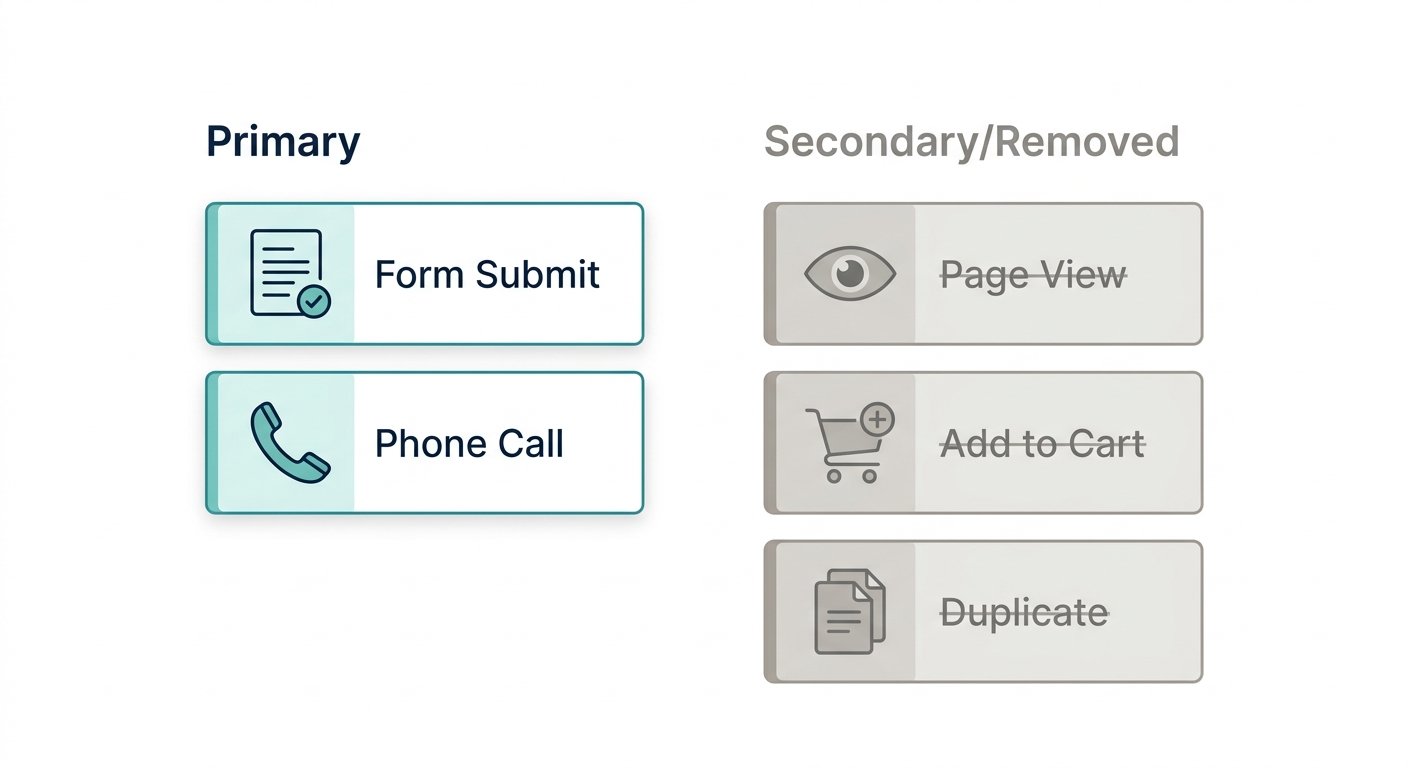
A clean account has one primary conversion action per type of real inquiry. For most service businesses and B2B sellers, that means a website form submission and a phone call of meaningful length. Everything else — add-to-cart, page views, old duplicate actions — goes secondary or gets removed.
Here’s what we set up for the industrial products seller described above:
- One new primary form-submission action: one conversion per click, data-driven attribution.
- One new primary website call action: 60-second minimum, one per click.
- One “Calls from ads” action: 60-second minimum, one per click.
- Old web form action: demoted to secondary.
- Old website call action (3-second threshold): demoted to secondary.
- Add-to-cart action: demoted to secondary, excluded from bidding goals.
The campaign’s bidding goal was then set to optimize only on the three new primary actions. The hosted lead form, old contact action, and cart event remained visible for observation but could not influence bids.
One primary action per real inquiry type. Everything else is observation-only.
Primary vs. Secondary: Which Actions Smart Bidding Should Learn From
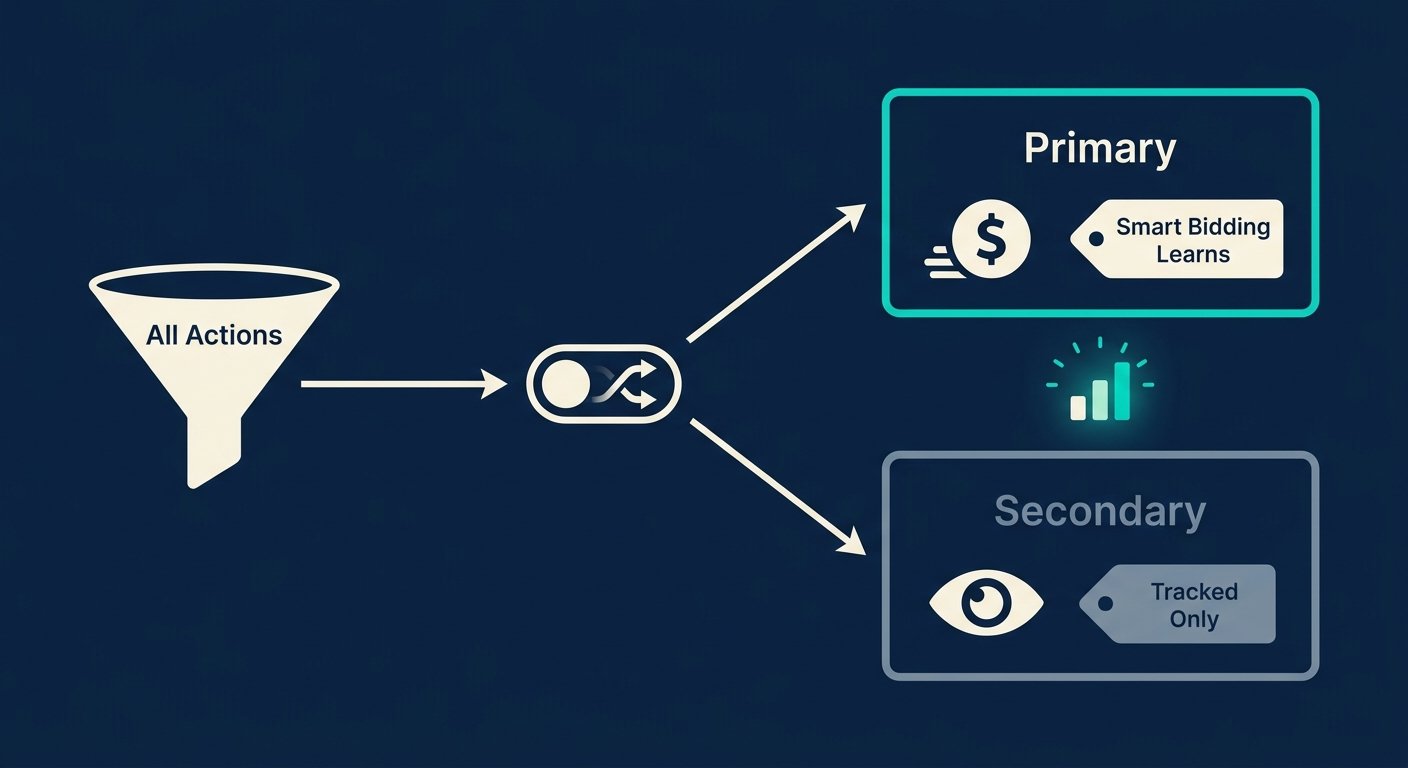
Google Ads draws a hard line between primary and secondary conversion actions. Primary actions appear in the “Conversions” column and are used by Smart Bidding algorithms to allocate budget and set bids. Secondary actions appear only in the “All conversions” column — they’re tracked but ignored by the bidding engine.
This distinction matters because most accounts accumulate conversion actions over time. An agency sets up form tracking. Someone adds call tracking. A developer enables e-commerce events. A year later, the primary column includes five actions, three of which are duplicates or proxies for engagement rather than intent.
The fix is simple in principle and tedious in practice: go through every conversion action, decide whether it represents a real inquiry, and demote everything else. If you’re unsure whether an action counts as a real lead, ask whether you’d be happy to receive a sales call that started that way. A 3-second call from a misdial? No. A 60-second call from someone who asked a question? Yes.
| Action type | Primary (bidding) | Secondary (observation) |
|---|---|---|
| New form submission (submit_success) | ✓ | |
| New website call (60-sec min) | ✓ | |
| Calls from ads (60-sec min) | ✓ | |
| Old form action (unconfirmed) | ✓ | |
| Old call action (3-sec threshold) | ✓ | |
| Add-to-cart event | ✓ |
How to Track Phone Calls in Google Ads (and Why 3 Seconds Is Too Short)
Google Ads can track calls a few ways: calls from ads (placed straight from a call-only ad or a call asset), calls to the number on your website (Google shows a forwarding number to people who clicked an ad), and clicks on your phone number on your mobile site. For most service businesses, you want all three set up and only the ones with a meaningful duration threshold set as primary.
For each call action you set a minimum call length, and only calls that last at least that long count as conversions. Accounts that have been around for a while sometimes have legacy actions set as low as 3 seconds. Three seconds is a misdial. It’s someone who hit the wrong number, heard your greeting, and hung up. It is not a lead.
We raised the threshold from 3 to 60 seconds on the industrial seller’s call action and set both the website call action and the calls-from-ads action to count one conversion per click. “One per click” prevents a single phone session from inflating your conversion count with multiple attributed events.
Google’s help page on tracking calls to a phone number on your website covers the technical setup for the forwarding number snippet. The key configuration decision — the duration threshold — is yours to make based on what a real inquiry looks like in your business.
Google Ads Form Tracking on WordPress and Elementor: Fire on submit_success, Not the Click
This is where most WordPress accounts break down. A developer adds a Google tag to the contact page and triggers the conversion on the “submit button click.” It fires. The tag fires every time someone clicks the submit button — whether the form validated, whether the fields were filled in, whether the submission actually sent.
On sites built with Elementor, the correct trigger is the submit_success event. Elementor emits this event only after the form has validated and the submission has been accepted. A button click, by contrast, fires before validation runs. If a user clicks submit on an empty form, a click-based tag counts a conversion. A submit_success-based tag does not.
We placed the conversion tag on the contact page and tied it to the submit_success event specifically for this reason. After placing the tag, we checked that the correct labels appeared in the live page source — and then we flagged something important: the tag being present in the source does not confirm the full chain works.
After installing any form conversion tag, have a real person complete the form with a test message and verify three things: (1) the conversion fires in Google Tag Assistant or the GTM preview, (2) the confirmation message appears on screen, and (3) the test message arrives in the inbox. All three must pass. If the inbox test fails, your form is broken — and so is your lead pipeline.
Because we also build and rebuild WordPress sites, we can trace the form-to-inbox chain that most pure ad agencies can’t. When a form fires a conversion but the message doesn’t arrive, the fault could be the form plugin, the SMTP configuration, the hosting mail relay, or a spam filter. An agency that only manages ads will see the conversion fire and call it done.
Our Real Setup: Before-and-After Conversion Actions
Here is the actual state of the account before and after our audit. Numbers and thresholds are from our internal records; no client names are included.
| Action | Before | After |
|---|---|---|
| Form submission action | Old action, unconfirmed firing, primary | New action, submit_success trigger, primary |
| Website call action | 3-second threshold, primary | 60-second threshold, primary (new); old action demoted to secondary |
| Calls from ads | Old settings not recorded | 60-second minimum, one per click, primary |
| Add-to-cart | Primary | Secondary (non-biddable) |
| Hosted lead form | Primary | Secondary (non-biddable) |
| Campaign bidding goal | All primary actions | Website form + website call + calls from ads only |
On the first day after the new setup, the campaign recorded 223 impressions, 14 clicks, and 3 conversions — one call and two hosted form submissions. None of the 3 showed on the new primary actions yet. We flagged that an end-to-end form test and inbox confirmation were still needed before declaring the tracking clean.
How to Confirm Tracking Works, and Why You Still Need an End-to-End Form Test
Here’s the verification sequence we run on every account before calling conversion tracking confirmed:
Check the page source
Open the contact page, view source, and search for your conversion tag ID. If it’s absent, the tag isn’t installed on that page regardless of what your tag manager shows.
Preview in Google Tag Manager
Use GTM’s preview mode to watch which tags fire when you interact with the form. Confirm the conversion tag fires on submit_success, not on the button click.
Submit a real test form
Fill out the form completely and submit it. Watch for the on-screen confirmation message and check that the conversion fires in the GTM preview or Google Tag Assistant.
Verify inbox delivery
Check the destination inbox (and spam folder) for the test message. If it doesn’t arrive, your form isn’t delivering — and every conversion you’ve credited to that form is suspect.
Wait 24-48 hours and check the Conversions column
After passing steps 1–4, let the account run and confirm new conversions appear on the primary actions, not only on the old secondary ones. If conversions only show on secondary actions, your primary tag is still not firing correctly.
Our co-founder co-runs a $25M+ a year online store, so we don’t trust a conversion number until we’ve watched it work. The test isn’t optional. It’s how you know the number in your Conversions column is real.
If you’re running product campaigns alongside lead-gen, step 7 of our Google Shopping Ads setup guide covers conversion tracking for Shopping campaigns.
Frequently Asked Questions
How do I set up conversion tracking in Google Ads?
Create a separate conversion action for each real inquiry type — typically a form submission and a phone call. Install the conversion tag or event on the correct page (the contact page, not the homepage), then confirm it by checking the live page source and running a real test submission. Don’t rely on the tag showing in a dashboard; verify it fires on the correct event and that the conversion appears in your account within 24 hours.
How do I track phone calls in Google Ads?
Set up a website call conversion action — Google replaces your phone number with a forwarding number that attributes calls to specific ads and keywords. Also set up a “Calls from ads” action to count calls placed straight from your ads (call assets and call-only ads). Set both to count one conversion per click and apply a minimum call duration (60 seconds is a practical starting point) so short or accidental calls don’t count as conversions.
What is a good call duration threshold for Google Ads conversions?
There is no single universal number, but 3 seconds is too short — it counts misdials and hangups. We use 60 seconds as a baseline because a 60-second call generally means a real conversation started. If your sales calls are typically longer (complex B2B inquiries, for example), you could set the threshold higher. The goal is to count only calls that could reasonably result in business.
What is the difference between primary and secondary conversion actions?
Primary conversion actions are used by Smart Bidding to optimize your campaign — they appear in the “Conversions” column and directly influence how Google allocates your budget. Secondary actions are tracked and visible in the “All conversions” column but are excluded from bidding decisions. Old, duplicate, or low-intent actions (like add-to-cart or page views) should be demoted to secondary so they don’t corrupt your bidding signal.
Why is my Google Ads form tracking not recording conversions?
The three most common causes are: the tag is missing from the page where the form lives, the tag fires on a button click rather than a successful submission, or the form itself is failing to deliver (which means no real conversion happened). Check that the tag appears in the live page source, use GTM preview to confirm it fires on submit_success rather than a click, and run a real end-to-end test to verify the submission arrives in the destination inbox.
Next Step: Google Ads Management with Conversion Tracking Verified From Form to Inbox
Cleaning up conversion actions is a one-time fix with compounding value. Every day your bidding algorithm runs on clean primary actions, it gets better at finding prospects who actually call or submit. Every day it runs on noise, it gets better at finding people who misdial or abandon forms.
We audit conversion action setup as part of every engagement. Because we also build WordPress and Elementor sites, we can close the loop from tag to inbox — something a pure ad agency can’t do without pulling in a developer. Our Google Ads management is $600 a month, flat, plus your ad spend, and getting calls and form leads counted right is part of it. Based near you? See our Google Ads management in Boca Raton.
You can also review our case studies to see how we approach tracking and campaign structure across different industries and account sizes.
Book a call — we’ll verify your tracking before you spend another dollar
We’ll check that your forms and calls are tracked end to end, your primary actions are set correctly, and your bidding is learning from real leads. No pitch deck, no obligation.

Skyler Libkie
Skyler Libkie joined UltraWeb Labs in 2022 and leads web design and SEO for the agency, building and ranking websites for South Florida businesses. UltraWeb Labs is an engineering-led web design and SEO agency in Boca Raton. Our co-founder, Damon Delcoro, co-runs Security Camera King, a $25M+ a year online store. More about Skyler →